
Let your AI assistant read the weather from your Google Calendar (and plan your workouts around it)
Many AI assistants can already read your Google Calendar. What they cannot do is see the weather, because the weather is not in your calendar. The Weather Calendar add-ons change that in the simplest way possible: they write the forecast into your primary Google Calendar as ordinary all-day events, one per day. Anything that reads your calendar, whether it is the Calendar app on your phone or an assistant connected to your Google account, sees the forecast next to your meetings and can reason about it. A reviewer on the Marketplace wrote: “Very responsive developer that answered my email fast! Used it for my AI Agent to read weather”.
What the events contain
All three add-ons create one all-day event per day in your primary calendar, for one city at a time. They differ in how much weather each event carries.
Weather Calendar (free) writes 14 daily events from Open-Meteo data, refreshed once a day. The title holds an emoji, the minimum and maximum temperature and the condition:
🌧️ 8°C / 13°C – Rainy
The description is one line, “Automatically updated daily weather forecast.” An in-app premium upgrade (CHF 7/year) refreshes every 3 hours and lets you choose the event colours.
Weather Calendar Pro (CHF 10/year) uses OpenWeather data and writes 8 daily events, refreshed every 3 hours. The title adds wind and humidity:
☀️ 6°C / 15°C – Sunny | 💨 12 km/h | 💧 75%
For the next 2 days the description also contains hourly lines from 06:00 to 23:00, each with the time, an emoji, the temperature, the rain probability, the wind and the humidity. These lines are what make a question like “around 7 pm” answerable.
Weather Calendar Ultra (CHF 15/year) has everything in Pro, and each day’s description adds wind with gusts and direction, cloud cover, visibility, the UV index, air quality (an AQI label, PM2.5, PM10 and gases), humidity, dew point, and sunrise and sunset. The title adds the wind direction and the pressure:
☀️ 6°/15° Sunny · 💨 12 km/h ↗ NE · 📈 1018 hPa
Because the forecast is plain text in the title and the description, an assistant needs no weather plugin. It reads the event like any other.
Set-up in four steps
- Install from the Marketplace on a desktop browser. Pick Weather Calendar (free), Weather Calendar Pro or Weather Calendar Ultra. The add-on lives in the side panel of calendar.google.com, so set-up happens on desktop.
- Accept the six permissions. All of them are required: see and edit your calendar events; connect to an external service (the weather data); run when you are not present (the background refresh); see your email address; see your language; run as a Calendar add-on.
- Pick your city in the side panel. One city at a time, changeable at any time.
- Wait for the first sync. The daily events appear in your primary calendar shortly after set-up and refresh on your tier’s schedule.
Connect your assistant
The forecast is in your calendar. Now let your assistant read it.
Claude. Turn on the Google Calendar connector in Claude’s settings and sign in with the same Google account. We checked this on 21 October 2026: listing the calendar returned the Weather Calendar all-day events, title and description included, interleaved with ordinary meetings, and Claude’s calendar search matched text in the title and in the description. Everything the prompts below ask for is in that text.
ChatGPT and Gemini. Both offer a Google Calendar connection: ChatGPT through its connectors, Gemini through its Google Workspace extension. Connect Google Calendar in their settings, then try the prompts below. We have not tested how each of them renders add-on events, so start with a simple question about one day.
What a morning brief can look like
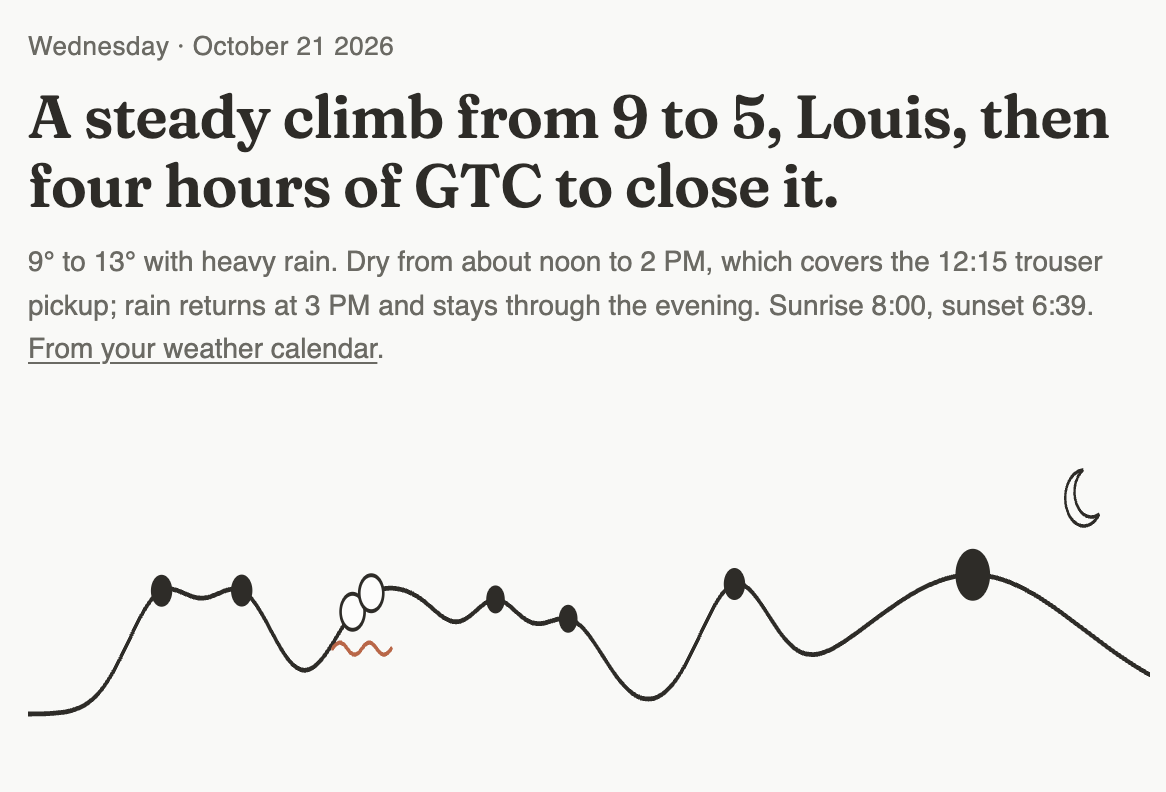
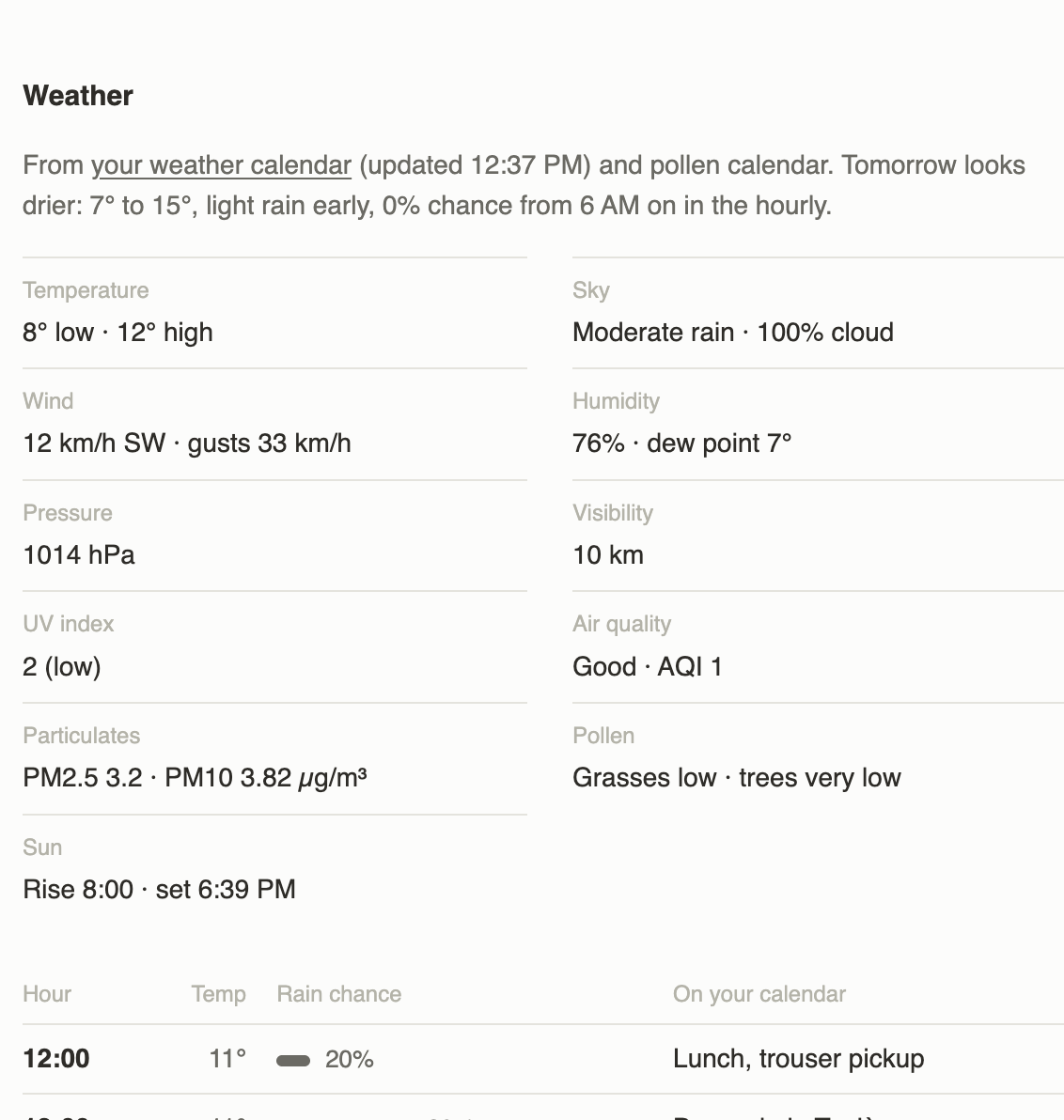
Once the forecast sits in the calendar, you can ask for it in any shape you like: a one-line verdict, a table by the hour, a checklist for the day. The brief below is the weather block of the same morning summary, generated from an Ultra event and the day’s ordinary calendar entries.
Ten prompts that work
The events carry no location field and do not name the city, so ask about dates, not places. Prompts marked Pro/Ultra rely on the hourly lines or on data that only those tiers write into the event.
Planning the week
- “Look at the weather events in my calendar for next week. Which two days look driest?”
- “Compare my meetings with the weather events this week and suggest an afternoon for a walking meeting.”
Workouts
- Run: “My run is on Thursday at 7 pm. Will it rain around then? Check the hourly lines in Thursday’s weather event.” (Pro/Ultra)
- Ride: “I am planning a long ride on Saturday. What do the weather events say about wind?” (Pro for wind speed; Ultra adds gusts and direction)
- Swim: “Is Sunday warm enough for an open-water swim? Give me the min and max temperature from my calendar.”
- Hike: “We are hiking on Saturday. What are the UV index and the sunset time in that day’s weather event?” (Ultra)
Family and outdoors
- “Which day this weekend looks better for a picnic, according to my calendar?”
- “Is the air quality on Wednesday fine for the kids to play outside? Check the weather event.” (Ultra)
Travel
- “Summarise the weather events in my calendar from Friday to Sunday in two sentences and tell me whether to pack a rain jacket.”
- “I land on Saturday at 2 pm. What does Saturday’s weather event say hour by hour from then on?” (Pro/Ultra)
Honest limits
- The horizon is 14 days on the free tier and 8 days on Pro and Ultra. Hourly lines cover the next 2 days only.
- One city at a time. If you travel, change the city in the side panel; saving it runs a refresh and the existing events are rewritten for the new city.
- The assistant answers from the text in the event. If a value is not in the title or the description, it cannot know it.
- Forecasts are forecasts. The data comes from Open-Meteo (free tier) or OpenWeather (Pro and Ultra) and carries the usual uncertainty. No guarantees.
- Uninstalling stops the refresh but does not delete the existing events. Today you delete them by hand; a one-click removal is planned.
FAQ
Does my assistant need special access?
No. It needs the same Google Calendar access it already uses to see your meetings. The forecast is stored as regular events, so there is no extra plugin, API key or permission on the Weather Calendar side.
Does this work on my phone?
Yes. Set-up happens once, on desktop at calendar.google.com, because that is where the add-on side panel lives. The events then sync to the Google Calendar apps on Android and iOS and to any other calendar app connected to your Google account, and an assistant connected to that account reads them wherever you talk to it.
Which tier do I need for air quality or UV?
Ultra. It writes the UV index, the air quality label with PM2.5, PM10 and gases, wind gusts and direction, cloud cover, visibility, dew point, and sunrise and sunset into each day’s description. Pro gives hourly temperature, rain probability, wind and humidity for the next 2 days; the free tier gives the daily minimum, maximum and condition.
What if the forecast stops updating?
Open calendar.google.com on desktop and open the add-on in the side panel. On every tier this re-registers the background refresh if it was lost. If the events still do not change after the next refresh window, email work@louissch.com. Pro and Ultra are billed yearly via Stripe. Cancel the renewal at any time by email, handled within 24 hours. Not satisfied? Full refund if you ask within 14 days of purchase. After that, your access continues until the end of the paid year.
Put the forecast in your calendar
Install the free Weather Calendar, pick your city and ask your assistant about Saturday. If you want hourly lines, wind, UV or air quality, Pro and Ultra add them to the same events. All three are described at weathercalendar.io.